Remote Control
Drive Kairos from Stream Deck, TouchOSC, or any controller in your booth.
Live operators rarely have a free hand on a keyboard. Kairos exposes its controls so you can wire them into hardware controllers, automation tools, and stage-management software running anywhere on your network.
What you can do remotely
Every action you'd reach for in the booth is available from a remote controller:
- Advance to the next verse in the queue
- Go back to the previous verse
- Show or hide the overlay
- Toggle on-air
- Switch the active theme
- Set the overlay opacity
- Set the detection confidence threshold
Stream Deck
Stream Deck is the easiest path. Each control maps to a single button. assign labels and colors so your booth knows what each one does at a glance.
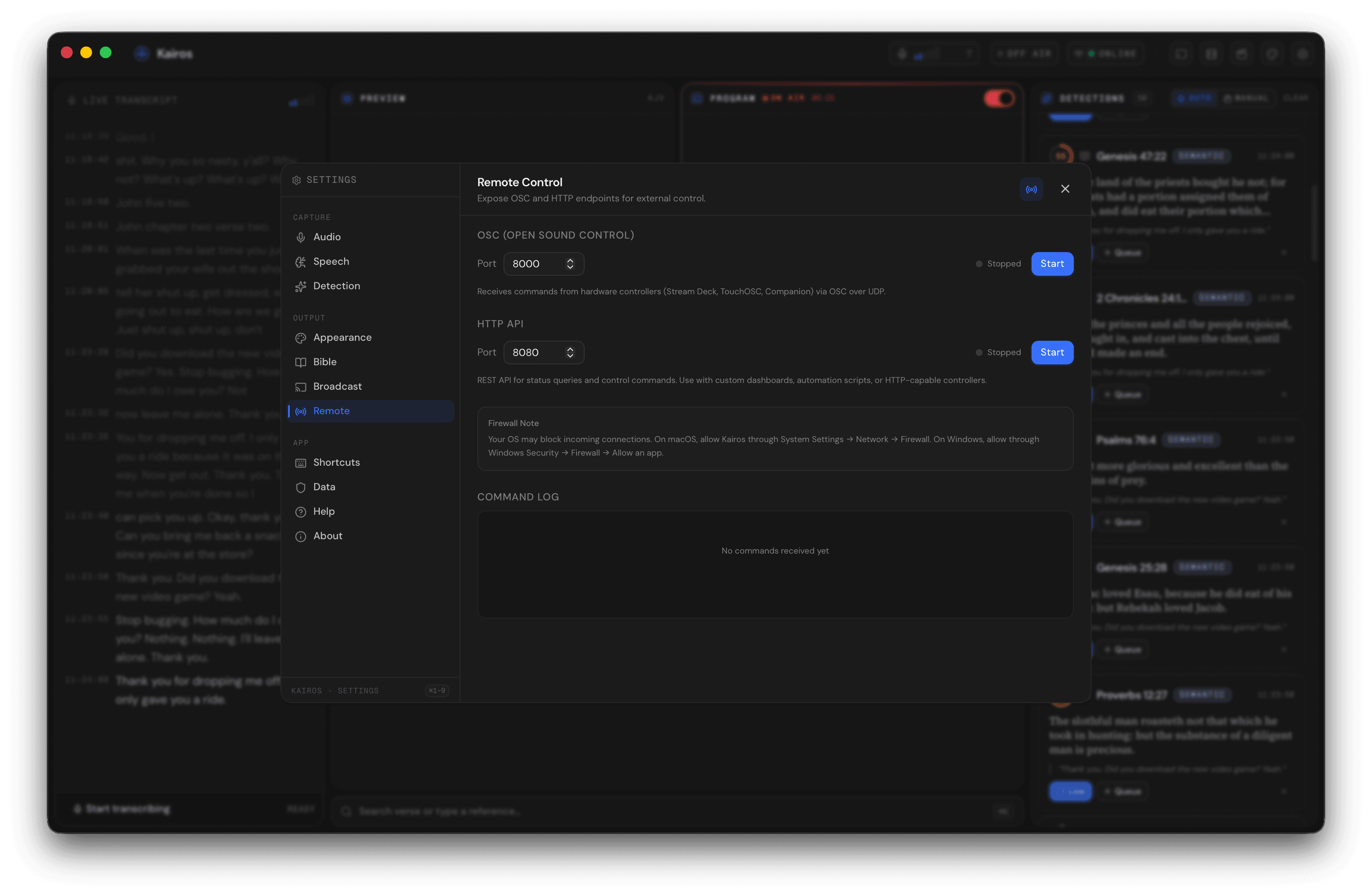
Settings → Remote: enable remote control, set the listening port, and watch incoming commands in real time. The command log helps you debug controller setups without leaving the app. Click to expand.
TouchOSC and other controllers
TouchOSC templates with verse-show/hide pads, opacity sliders, and theme buttons drop right onto a tablet. Any controller that speaks the standard network protocols Kairos listens on will work.
Settings and security
By default Kairos is reachable on your local network so a tablet, a staff laptop, or a hardware controller on the LAN can connect.
For services where you only want the booth operator to drive Kairos, restrict the listener to localhost in Settings → Remote.
On your church network
Live command activity is visible in Settings → Remote with timestamps, so you can see exactly what every controller is sending. If a button isn't firing, the log usually answers why before you reach for documentation.